AI Export Sidebar — Export AI Chats Without Leaving Your Conversation
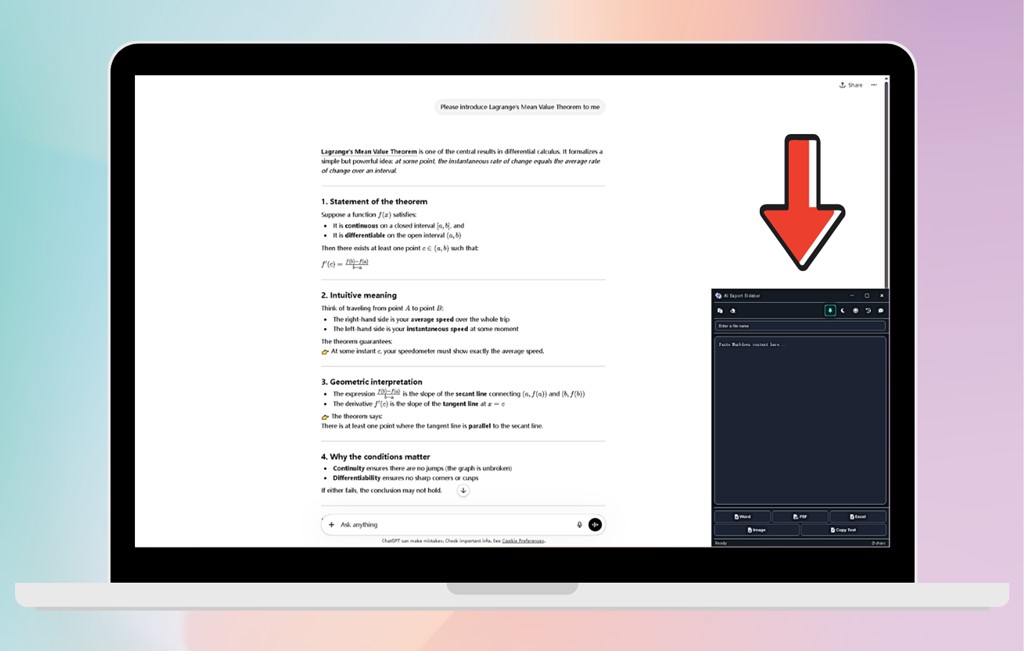
A compact floating window that docks to your screen. Copy from ChatGPT, Claude, or Gemini, paste into the sidebar, and get a perfectly formatted Word or PDF document — all without switching windows or interrupting your workflow.
Everything You Need, Nothing You Don't
Always-On-Top Floating Window
A compact mini-window that docks to the bottom-right corner. It stays visible over your AI chat, browser, or any application — without ever stealing keyboard focus.
Extreme LaTeX Formula Compatibility
From basic inline formulas like $E=mc^2$ to complex multi-line
matrices and calculus expressions — every formula is parsed and rendered perfectly.
Perfect Mermaid Diagram Support
AI-generated flowcharts, sequence diagrams, and Gantt charts in Mermaid syntax are automatically detected, rendered as HD graphics, and embedded directly into your document.
Five Export Formats in One Click
Word (.docx), PDF, Excel (.xlsx), high-resolution image (.png), or plain text (.txt). All from the same paste operation.
Works with All Major AI Platforms
ChatGPT, Claude, Gemini, DeepSeek, Kimi, and any AI assistant that outputs Markdown with LaTeX and Mermaid.
Light/Dark Themes & 10+ Languages
Matches your working environment. Use the interface in English, Chinese, Japanese, Korean, French, German, Spanish, and more.
Copy-Paste vs. AI Export Sidebar
$\int_{0}^{\infty} e^{-x^2} dx = \frac{\sqrt{\pi}}{2}$
Raw LaTeX code displayed as text
∫₀^∞ e^(-x²) dx = √π / 2
Perfectly rendered mathematical formula
Three Steps to a Perfect Document
Copy from AI
Select the AI response in ChatGPT, Claude, Gemini, or any other assistant and copy it to clipboard.
Paste into Sidebar
Click the sidebar window and paste. It automatically detects LaTeX formulas and Mermaid diagrams.
Click Export
Choose your format — Word, PDF, Excel, image, or text — and click export. Your document is ready.
Frequently Asked Questions
What is AI Export Sidebar?
AI Export Sidebar is a floating desktop window that stays on screen while you chat with AI. Copy content from ChatGPT, Claude, or Gemini, paste it into the sidebar, and export to Word, PDF, Excel, image, or text — all without leaving your conversation or switching windows.
Does the sidebar block my screen or interrupt my work?
No. The sidebar is a compact mini-window that automatically docks to the bottom-right corner. It is always-on-top so you can always see it, but it never steals keyboard focus. You can continue typing and working in your AI chat without any interruption whatsoever.
Does it work with all AI platforms?
Yes. It works with any AI assistant that outputs Markdown, including ChatGPT, Claude, Gemini, DeepSeek, Kimi, and others. Since it processes pasted text content, platform compatibility is universal.
How is this different from AI Markdown Converter?
Both tools share the same LaTeX and Mermaid rendering engine and export to the same five formats. AI Export Sidebar is a compact floating window for uninterrupted workflows — you never leave your AI chat. AI Markdown Converter is a full-window application with a smart error-fixing engine, available on Windows and iOS. Learn more about AI Markdown Converter →
Is my data safe?
Your content is transmitted over encrypted connections for processing and is immediately destroyed after the export is complete. We never store your conversations or exported documents. Learn more about privacy →
Download AI Export Sidebar
Stop alt-tabbing between AI and Word. Export perfectly formatted documents without leaving your conversation.